Google Assistant
Triage your inbox, draft replies, and manage your calendar — all from a single conversation.
The Workflow
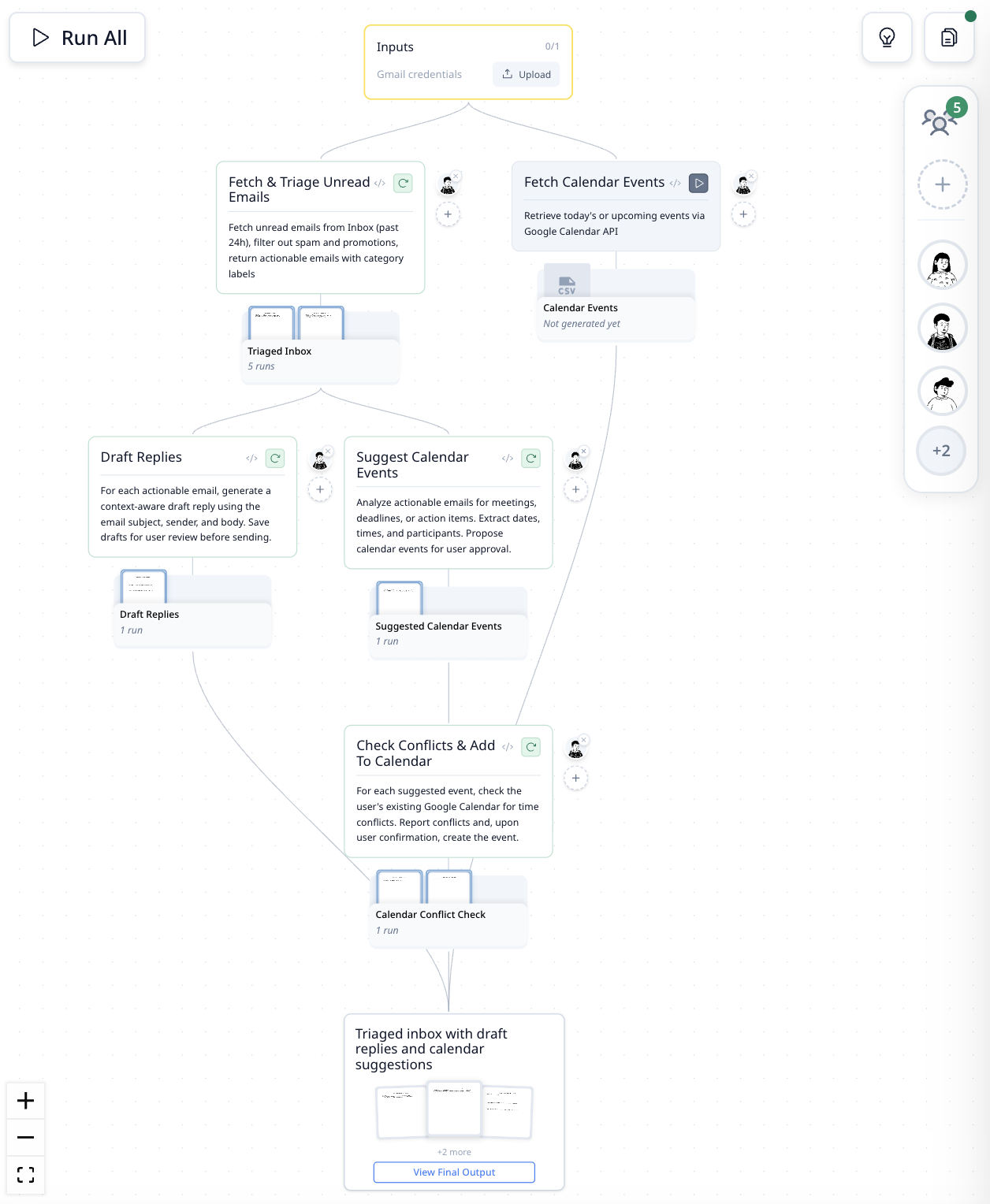
| Step | What It Does |
|---|---|
| Fetch & Triage Unread Emails | Pulls unread emails from the past 24 hours, filters out spam and promotions |
| Draft Replies | Creates a context-aware draft reply for each actionable email |
| Suggest Calendar Events | Scans emails for meetings, deadlines, and action items — proposes events |
| Check Conflicts & Add to Calendar | Compares suggestions against your existing calendar, flags overlaps, waits for your approval |
| Fetch Calendar Events | Retrieves today's or upcoming events on demand |
How It Was Built
"What are my last 5 emails? Also add calendar support."
Two conversational requests. MorphMind started with a Gmail reader, then when the user asked about calendar events, the agent added a calendar step on the spot — no restart, no reconfiguration. The full 5-step workflow grew through use.
Why This Works Better Than a Chatbot
If you ask ChatGPT to "handle my email," it reads your inbox and gives you one big summary. Sounds useful until:
- A draft reply is wrong — but the email triage was fine. In a chatbot, you can't fix the reply without re-running the whole thing. Here, each step is independent. Edit the draft, keep the rest.
- It suggests a meeting on Tuesday — but you already have something at that time. Chatbots don't check your calendar before suggesting. This agent runs a conflict check as a separate, visible step.
- Tomorrow you ask again — and it asks you to re-authenticate, re-explain your preferences, start from zero. A workflow agent remembers your connection, your rules, your corrections.
| The Problem | Workflow Approach |
|---|---|
| One combined answer — can't tell if triage or reply is the issue | Each step produces its own output you can inspect |
| "Schedule a meeting" without checking your calendar | Dedicated conflict-check step before any event is created |
| Re-authenticate and re-explain every session | OAuth persists, preferences carry forward |
Example Prompts
You have connected to my Google. Now summarize my latest email
You have connected to my Google. Now summarize my upcoming calendar
You have connected to my Google. Now draft an email to [email protected] to say let's meet Friday
Triage my inbox — skip promotions and spam, draft replies for everything else, and flag any emails that need a calendar event
Frequently Asked Questions
Can AI read my Gmail and manage my calendar?
Yes. This agent connects to Gmail and Google Calendar via OAuth with three scopes: gmail.readonly, gmail.compose, and calendar. You authenticate once and the agent handles reading, drafting, and scheduling across sessions.
How does AI check for scheduling conflicts in Google Calendar?
The agent runs a dedicated conflict-check step. For each suggested event, it queries your existing calendar for overlapping time slots and flags them. No event is created without your explicit approval.
Is it safe to let AI draft email replies?
The agent creates Gmail drafts — it does not send anything automatically. Every draft appears in your Gmail Drafts folder for you to review, edit, and send manually.